This plug-in filter is used for descreening images that have been scanned from a previously printed source (such as a newspaper, magazine, book, postcard, etc). It also can be used for descreening halftone films. Descreening prevents moiré patterns and consists of two operations:
After the installation the Descreen filter will available as Sattva > Descreen from the Filter menu.
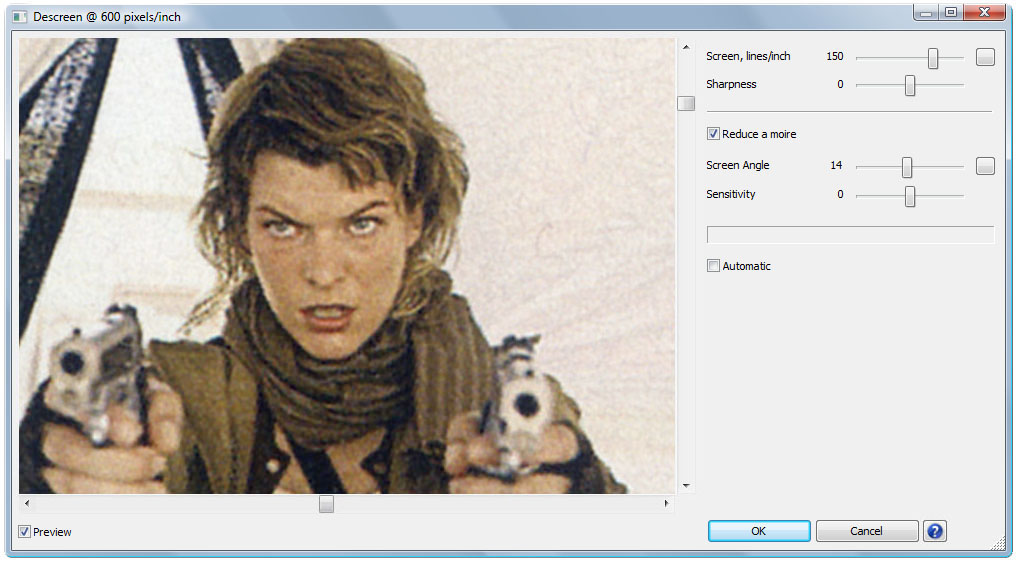
Picture 1. The plug-in dialog (Windows version). The legends on untitled buttons are displayed when the mouse moves over them..
Examples in this section show how to use the plug-in. Download DescreenSamples.zip to have the sample images.
Open Gerard.jpg in Photoshop. Launch Descreen (choose Sattva > Descreen from the Filter menu). The plug-in dialog box will appear. Select Automatic. Click OK. This is the simplest way to use the plug-in. When put into the Automatic mode, the plug-in automatically calculates the all settings. However, the Automatic mode does not produce the best possible results for colour images. Close the file without saving.
Open Milla.jpg. Launch Descreen. Deselect Automatic. Change the preview area so that it is filled with the image rather than with the text. Click the Screen Measure button near the Screen slider to perform a calculation the screen frequency. The plug-in will calculate the screen frequency and the screen angles over the part of the image shown in the Preview window. Click OK. Close the file without saving.
Open FalseMoire.jpg in Photoshop. Launch Descreen. Deselect Automatic. Choose Sensitivity to minimize moiré. Click OK. Close the file without saving.
Scan a small colour image (about 1 x 1 inches) at 600...1200 pixels/inch. It is important to use the scan resolution from the scanner presets value. If your scanner has Descreen or Sharpen options, disable them. The image should be scanned without scaling (i.e. 100% scaling). If you save the scanned image before descreening, use the TIFF format rather than JPEG. If using JPEG, choose the best quality setting or minimal compression.
Open the scanned image in Photoshop. Launch Descreen. Select Reduce Moiré. If the image was scanned properly and has a distinct screen, the plug-in will calculate screen frequency and screen angle of the image. If the plug-in fails to calculate screen frequency, change the Preview area and click the Screen Measure button. If the plug-in fails to calculate screen angle, change the Preview area and click the Screen Angle Measure button. Screen frequency should be measured first, then the screen angle. If screen angle or screen frequency are not specified, the OK button remains unavailable.
If you fail to filter the image, try to use the Automatic mode (see Example 1) or scan another image. If the filter still does not work, the most probable reason is wrong scanning. See How to Scan Printed Originals.
You can farther explore the plug-in empirically. If you will need more information please read the rest of the User Guide. Key terms (screen, colour printing and halftone moiré pattern) are given in the Glossary.
Descreening consists of two operations: 1) Screen removing; 2) Reducing the halftone moiré pattern (in printed colour images). Printed images must be properly scanned, as explained in How to Scan Printed Originals, for descreening to be successful.
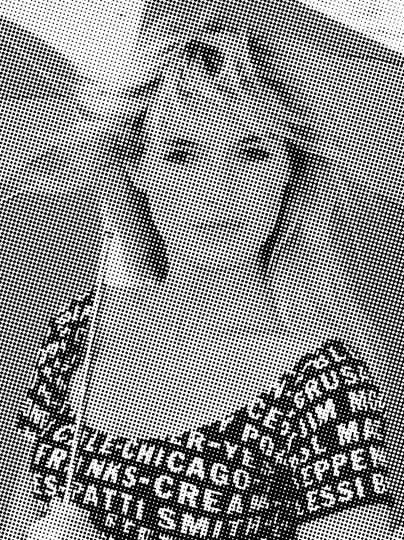
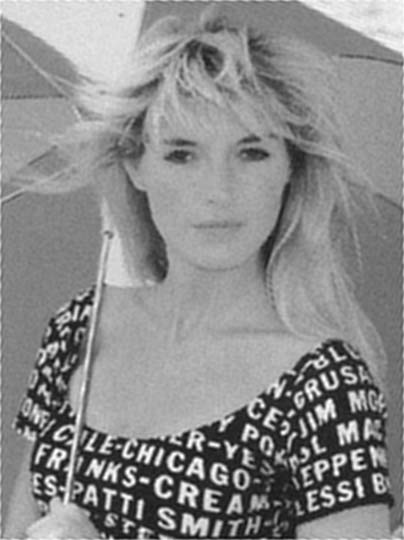
To remove the screen, you have to specify screen frequency on the Screen slider (see Picture 1). An example of screen removal is shown in Picture 2. Usually the plug-in calculates screen frequency automatically, but sometimes (e.g., if an image has no distinct screen) it fails to do so. You may specify the screen frequency manually by the Screen slider. If you enter screen frequency higher than its actual value, the screen will be reduced but not removed completely; if lower the image will lose sharpness.
Picture 2. Screen removing for
a grayscale image
Left: the original scanned printed image (included in
DescreenSamples.zip).
Right: the filtered image.
The screen removing controls are described
in Controls.
When descreening colour printed images you need an additional operation — reducing the halftone moiré pattern. See Picture 3.
Picture 3. Reducing the
halftone moiré pattern for a colour image (click to enlarge).
1) The original image (included in DescreenSamples.zip).
2) The same image after screen removal. There is still a prominent halftone
moiré pattern.
3) The same image after screen removal and moiré reduced.
To reduce the moiré, select Reduce Moiré and enter screen angles for Cyan (C), Magenta (M), Black (K) and Yellow (Y) inks (see Picture 1). With the screen angles entered, the plug-in calculates the moiré to reduce it. If you enter either a wrong screen frequency or wrong screen angles, the plug-in will fail to reduce moiré and may actually produce extra moiré. For properly scanned images, the plug-in calculates screen angles automatically. If it fails to do so, you have to enter them manually.
The moiré reducing controls are described in Controls.
For more information about the screen and descreening see the Glossary.
The controls of the plug-in are divided into two groups (see Picture 1) in accordance with the two operations described above. If current settings are inappropriate to descreen your image, the OK button will be disabled.
This slider should be set to the exact screen frequency of the image. If the screen frequency is not specified the OK button will be disabled.
After you launch the plug-in it calculates screen frequency over the part of the image shown in Preview. If successful, the Screen slider is set to this screen frequency. If the plug-in fails to determine frequency, choose a part of the image with a more prominent screen in Preview. Click the Screen Measure button to measure screen frequency. This button is to the right of the Screen slider (see Picture 1). Alternatively, you can measure screen frequency by the Photoshop Measure Tool (see Measuring the screen frequency and the screen angles by the Photoshop Measure Tool).
If you fail to measure screen frequency, make sure you have properly scanned the image (see How to Scan Printed Originals).
When you enter screen frequency with the help of the Screen slider, the hand will appear on the Screen Measure button. It is a reminder that you have entered screen frequency manually.
The Sharpness slider compensates for the blurring that occurred during the scanning. Sometimes it may be useful to reduce sharpness to make the ragged edges in the image less prominent.
Select Reduce Moiré if you are going to reduce a halftone moiré pattern. This option is enabled for RGB images only. It is impossible to use this option after the screen has been removed.
The Screen Angle should be set with the screen angle of the image to be processed. The plug-in calculates the screen angle over the part of the image shown in Preview and the Screen Angle set in. You can use the Screen Angle Measuring button to measure the screen angle over the part of the image you see in Preview. This button is on the right of the Screen Angle slider (see Picture 1). Alternatively you can measure the screen angles by the Photoshop Measure Tool (see Measuring screen frequency and the screen angles by the Photoshop Measure Tool).
The Sensitivity slider is used to set the sensitivity of the moiré reducing algorithm. To find the best value of this control, set the Sensitivity slider to the extreme left, which corresponds to the lowest sensitivity. Then move gradually the slider to the right until the halftone printed moiré starts being reduced. At some point there will be no further improvement. This is the optimal position. Choosing a higher value will not improve the result, but increase the probability of the false moiré. If the false moiré appears, move the Sensitivity slider to the left until the false moiré disappears.
It is possible that during moiré reducing the moiré pattern becomes more prominent. This phenomenon is called "false moiré" in this guide. The false moiré usually appears near "problem areas" such as sharp details of the image or lines parallel to screen lines. An example of a "problem area" is text placed over a photograph. To eliminate the false moiré, reduce the Sensitivity.
The work of the plug-in is based on analyzing the smallest details of an image. It is important to scan printed originals properly if scanned images are to be descreened successfully.
First of all, the scan resolution must be high enough. For the most images scan resolutions within 600...1200 pixels/inch should be sufficient. Scanning at resolutions of more than 1200 pixels/inch seldom leads to better results compared to scanning at 600 pixels/inch, however it greatly increase processing time.
| Printed originals | Typical screen frequency | Recommended scan resolution |
| Street posters | 35...75 lines/inch | 300...600 pixels/inch |
| Newspaper (vintage) | 35...100 lines/inch | 300...600 pixels/inch |
| Newspaper | 75...150 lines/inch | 600...1200 pixels/inch |
| Books and magazines | 100...175 lines/inch | 600...1200 pixels/inch |
| Postcards, art books, high quality publicity materials | 150...250 lines/inch | 600...1200 pixels/inch |
| Postage stamps, bank-notes | more than 300 lines/inch | 1200...2400 pixels/inch |
The scan resolution measured in pixels/inch must be at least 3 times more than the image screen frequency measured in lines/inch. If the image resolution is less than 3 times its screen frequency, the image needs to be rescanned. For example, if the scan resolution is 300 pixels/inch, the plug-in can descreen colour images, if their screen frequencies are less or equal 100 lines/inch. It follows that a scan resolution of 300 pixels/inch is too low for the most colour images.
When scanning printed originals use the following rules:
Tips to get better results:
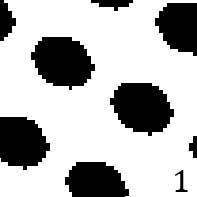
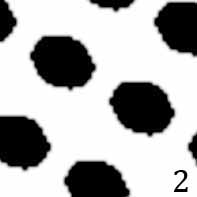
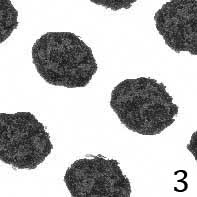
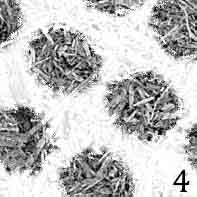
Some printed originals, such as images printed by a new offset press on a high quality coated paper or films, have very sharp spots of their screen. During scanning this kind of printed images the moiré is likely to arise. This is due to the interference between the screen spot edges and the CCD pixels. The examples of the real screen spots are shown in Picture 4. To prevent the moiré during scanning this type of images, scan them at the scanner's optical resolution. After that use the plug-in Downsample to downsample the image resolution to 600...1200 dpi. For example, if the optical resolution of the scanner is 2400 pixels/inch and a screen frequency of the original is 150 lines/inch, downsample it to 600 pixels/inch. If screen frequency of the original is 175 lines/inch, then downsample it to 800 pixels/inch. Don't use Photoshop's Image Size command for this purpose because it may produce the moiré during downsampling.
There are four factors that affect the quality of descreening:
The first two factors are discussed in this section (the last two were discussed above).
Low quality printed originals are, for example, newspapers printed on uncoated paper. After descreening these images, one can see maculation, grain and poor contrast especially in shadows and highlights. The maculation and the grain are due to heterogeneity of the uncoated paper. The poor contrast is due to its poor absorbability.
Picture 4. Screen spots
(enlarged 100:1).
1) In a file; 2) On a film (or plate); 3) After
printing on a coated paper; 4) After printing on an uncoated paper;
The higher the printing and paper quality, the sharper the screen spot edges and the higher the quality of the descreening. However, when the screen spot edges are very sharp special care must be taken when scanning — see Scanning High Quality Printed Originals.
It is important for moiré reduction that your scanner has enough resolving power. If the scanner has the resolving power less than 3 times the image screen frequency, the plug-in will fail to descreen the image. If the plug-in can't calculate screen frequency or the screen angles, it is likely either the scanner has poor resolving power or you have made wrong scanner settings. You may try to enter screen frequency and the screen angles manually and filter the image. However, the result may be far from ideal.
If the scanner makes pauses during scanning, it slices the scanned image. The less precise the scanner's mechanism, the less the slicing accuracy. Seams and gaps affect the descreening quality. Sometimes it is possible to see the seams and gaps in Photoshop at 100% magnification. If it is the case, scan the images one by one instead of scanning many images for one big scan.
Most of fax-machines, copiers and multi-function devices do not provide good quality when they scan at 600 pixels/inch or more. A good scanner should be able to scan an A4 original at 600 pixels/inch without any pause.
If you have troubles with descreening, download properly scanned images from the plug-in site. Try to descreen these image to help localize the problem. Also you may scan the image using another scanner and compare the results.
This plug-in module has been installed along with the Descreen plug-in. It can be found under the Automation section of the File menu. The Downsample plug-in downsamples the image resolution without introducing any moiré.
When the plug-in is launched it determines the screen frequency to process the image. Depend on plug-in settings there are two ways to determine the screen frequency.
Set the zoom percentage to 300...400%. Find an image area with a single ink. Choose Measure Tool from the Tools. Using it, connect the centres of two screen dots 20 dots apart along a screen line. The angle of screen line and the distance between the two dots will be shown on the Info Panel. Dividing 20 by this distance measured in inches, you will get screen frequency in lines/inch. If the screen angle more than 30 degrees, subtract 30 degrees until you will get the value less than 30.
If the screen dots are difficult to see, rescan a part of the image at optical resolution of the scanner.
This can be done by converting the image to the CMYK mode and shifting the channels. It should be done after descreening.
There is no information lost if the resolution of a descreened image is reduced to up to 2 times screen frequency. You don't save more image details if you keep the descreened image at higher resolution. For example, if you have descreened the 800 pixels/inch image with 175 lines/inch screen, you can lower its resolution by the Image Size command to 350 pixels/inch. The image will lose no details.
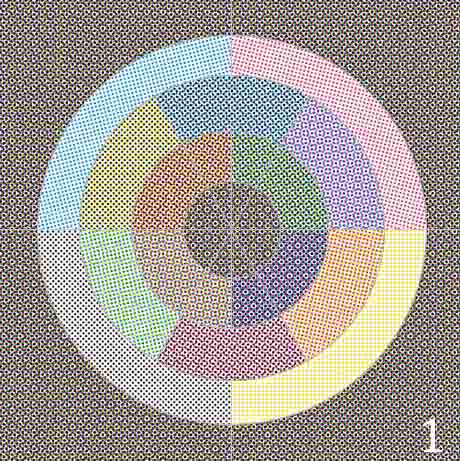
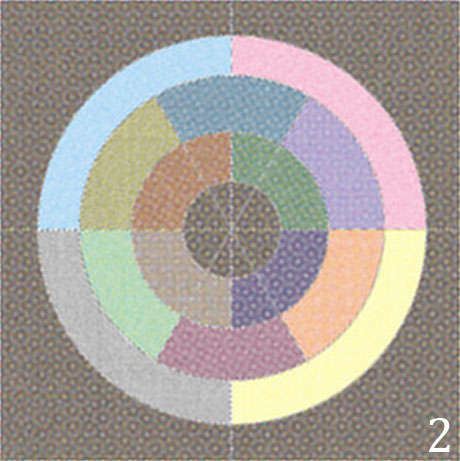
Four colour offset printing — a way of full colour printing by four inks, whereby each ink is offset printed as a screen. The four inks are cyan, yellow, magenta and black (CMYK). Screen frequencies are usually the same for all inks. Screen angles are chosen to minimize the Halftone moiré.
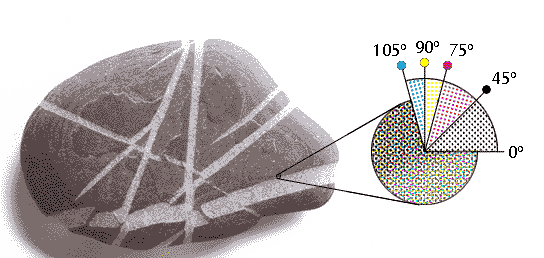
Picture 5. Full colour printing using the four inks.
Halftone Moiré — a moiré formed during the colour offset printing between Cyan, Magenta, Yellow and Black ink screens. When the separation screens are correctly registered screen dots form rosettes (see Picture 3 and Picture 5). That is a halftone moiré. The most prominent halftone moirés in Red and Green channels are formed between dense inks: Cyan, Magenta and Black. The most prominent halftone moirés in Blue channel are formed between Yellow and dense inks. Reducing the halftone moiré is a part of the process of descreening for scanned colour printed images.
Halftoning — see Screening.
Moiré - an interference pattern created when two grids have slightly different mesh sizes, or when they are overlaid at an angle.

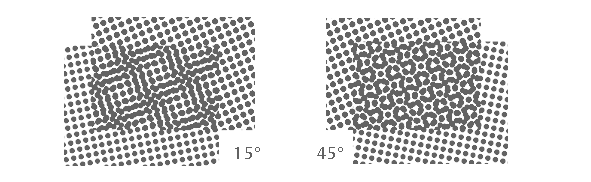
Picture 6. Moiré pattern examples.
Optical resolution of the scanner — the native resolution of the scanner determined by the number of its CCDs (sensors) per inch. At this resolution, scanner does not scale the image, and the scan quality is its best. Scanning at a higher resolution does not give more information; you can get the same result by scanning at optical resolution and upsampling the image by the Photoshop's Image Size command. The scanner's true resolving power is less than its optical resolution.
Offset printing is a widely used printing technique where the inked image is transferred (or "offset") first to a rubber blanket, then to the printing surface. The printed printing surface consists of ink-free areas and areas filled with the ink. There are no areas with midtones (shades). To reproduce the midtones in offset printing, the halftoning is employed. To learn more about offset printing see an article in Wikipedia.
Resolving power of the scanner is the minimum distance between distinguishable lines of the scanned object. The resolving power is measured by a special line target (test object) consisting of graduated convergent thin lines. The point where the lines of the scanned line target are merged determines the scanner's resolution power.
Screen — the result of the screening.
Screen angle — an angle of screen lines. For the colour offset printing setting the screens at maximally different angles ensures that the dots placed by the four screens blend to look like continuous colour and produce the minimum moiré pattern. The common screen angles are C105°, M75°, Y90°, K45°. The angle 105° is equivalent to 15° because the screen cells are square. The angle 90° is equivalent to 0°. So these angles are the same as C15°, M75°, Y0°, K45°.
Screen frequency — the number of lines of cells per inch (lines/inch) in a halftone screen. The higher screen frequency the finer image details can be printed, and the less halftone screen is visible to eye. However for high screen frequencies, high quality paper and inks are required. For the typical screen frequency values see the Scanning section.
Screen lines — screen cells, which osculate each other and are on the same line (see Picture 8).
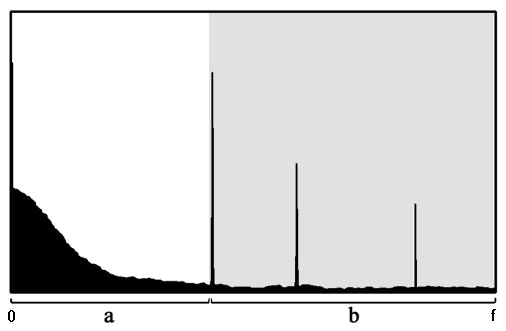
Screen removing (the theory). Suppose that an offset printed image has been scanned as, for example, the left image in Picture 2. This image has a screen. Calculating the spectrum of this image, shows high peaks at the screen frequency and its harmonics (see Picture 7). If this image is output to a screen device (a printer, a display, an imagesetter) with a screen frequency close to one of these peaks, a moiré pattern will occur. To prevent the moiré, all these peaks should be eliminated. The Descreen plug-in removes from an image all frequencies equal to the screen frequency and higher. The result of the descreening is shown in the right part of Picture 2.
Picture 7. Spectrum of the image with a screen
a) The domain with image information.
b) The domain with screens peaks to be eliminated. The boundary of the
domains is a bit to the left from the image's screen frequency value.
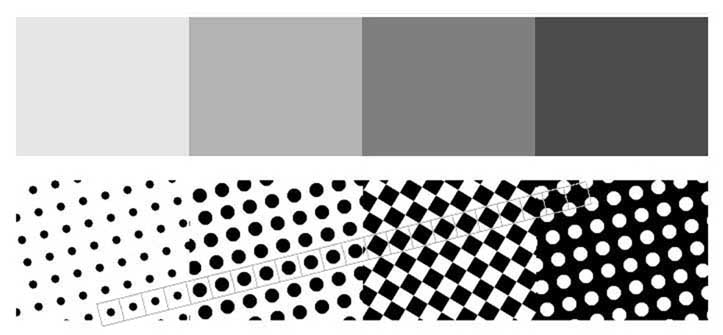
Screening, or Halftoning — the simulation of a continuous-tone image (shaded drawing, photograph) with dots. A halftone screen used in the offset printing consists of square cells partly filled with ink. The cell size is 0.003-0.02 inches. When the black ink is used, partly filled cells take on shades of gray for human eyes (see Picture 8), because the cells are so small. Halftone screen attributes include screen frequency, screen angles and a dot shape. To learn more about halftoning see an article in Wikipedia.
Picture 8. The example of the screening (enlarged by 30 times): the upper image with 10%, 30%, 50% and 70% density, the lower image is the result of screening (round screen dots, screen angle 15 degrees). One of the screen lines is marked. Real screen spots are shown in Picture 4. colour screens are shown in Picture 5.
It is recommended to use Adobe Photoshop CS3 or later on a computer armed with 2.0 GHz or faster processor with a cash at least 512 kb. The efficiency of the plug-in may be increased if the processor cash size is increased up to 12 Mb.
The efficiency of the plug-in may be increased if the processor cash size is increased up to 12 Mb.
See Help on activation the plug-in.
If you have troubles using the plug-in, write to sattva sattva
 ru
ru
The plug-in site:
http://www.descreen.net/eng/soft/descreen/descreen.htm
The current plug-in version:
 Download
Adobe® and Photoshop® are registered trademarks of Adobe Systems Incorporated.